While a venue page is open, TableGo tells you when guests book, change or cancel, pay a deposit, buy a voucher or ticket, or leave a review. The Action centre on the Dashboard lists set-up and account tasks that need your attention.
The notifications bell#
The bell is in the top bar, next to your avatar. A red badge shows how many notifications you haven't read, and the browser tab shows the count too, for example (3) TableGo Business. If you use the sidebar layout on a computer, the bell is at the top right of the Dashboard, next to Add Reservation.
- 1
Click the bell
The Notifications panel opens on the right.
- 2
Pick a tab
All, New, Updated or Cancelled.
- 3
Click a notification
It's marked as read and takes you to it: the Dashboard on that booking's date, Reviews, Vouchers → Orders or the event's page.
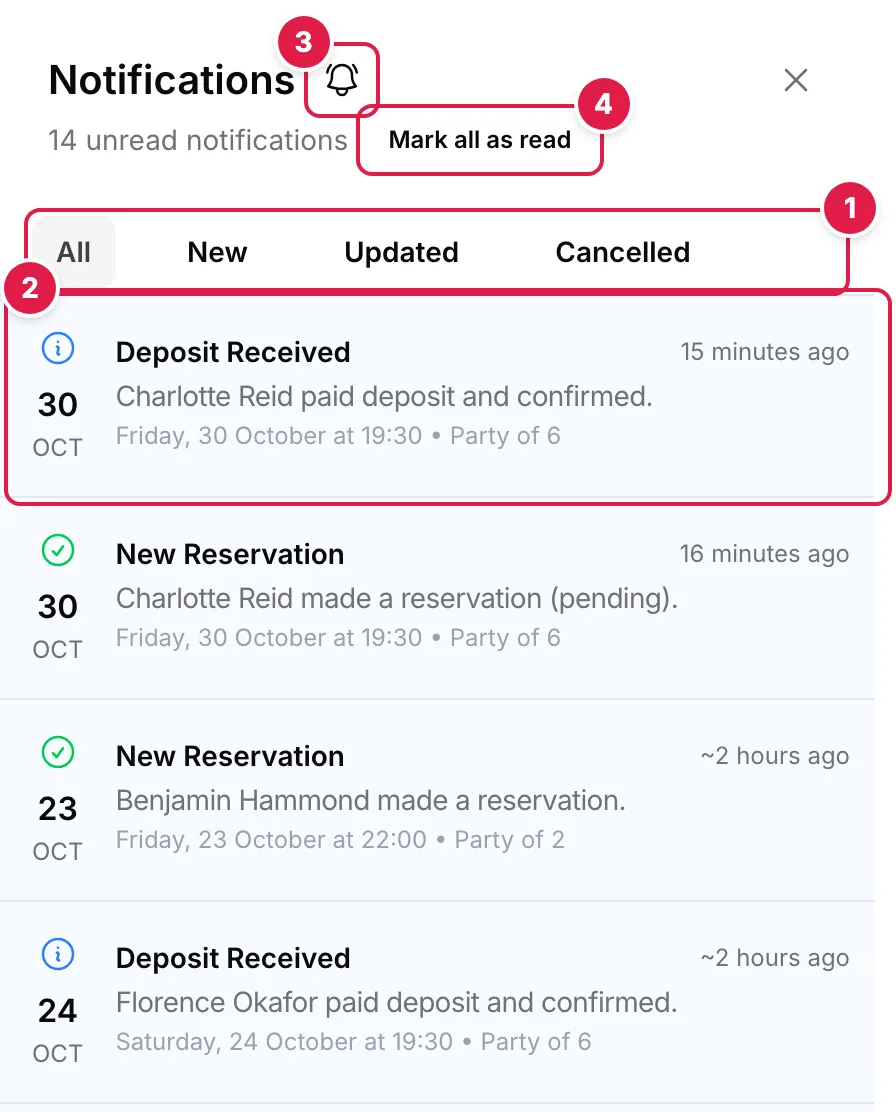
- Pick a tab: All, New, Updated or Cancelled
- Click a notification to mark it read and go to it
- Turn the sound off or on
- Mark all as read clears your badge
Mark all as read clears your badge. Notifications aren't deleted; the panel keeps the last 100.
What you're notified about#
- New — New Reservation, New Review, Voucher Sale and Event Ticket Sale
- Updated — Reservation Updated, Reservation Confirmed, Deposit Paid, Deposit Received, Deposit Refunded and Event Ticket Refunded
- Cancelled — Reservation Cancelled, Reservation Auto-Cancelled (for example when a deposit wasn't paid in time) and Refund may be needed (a deposit arrived after its booking had expired)
Note
Pop-ups and sound#
New notifications pop up at the top right of any venue page and close after 10 seconds; hover over one to keep it open. Each one also plays a chime. Browsers only allow sound after you've clicked or typed on the page once, so tap anywhere after opening TableGo on your front-of-house tablet.
To turn the sound off or on, click the sound button next to the Notifications heading (Mute notification sound); it shows a crossed-out bell while muted. The choice is saved in that browser for that venue, so everyone using the same tablet shares it.
Important
Who sees what#
Owners, Managers and Staff get the bell, pop-ups and sound; Viewers don't. Read and unread are tracked for each person, so Mark all as read only clears your own badge.
The Action centre#
Tasks that need attention appear at the top of the Dashboard. When there's nothing to do, you won't see it. If there are more than two, click View all.
- Connect Stripe, Finish Stripe setup, Add payout bank or Stripe is verifying — you take deposits, card guarantees, vouchers or paid tickets, but payments aren't ready yet
- Add your tables — your venue is in Tables mode with no tables yet
- Add service periods — guests can only book service periods, and none are bookable
- Add online bookings — no guest has booked online yet. Get link & code takes you to your booking widget.
- Checkout incomplete, Pro payment failed or Subscription payment failed — the Pro subscription needs the owner's attention. Other team members see Account action required.
- Moved to Basic — the Pro subscription has ended. The owner can click Restore Pro.
Owners and Managers see the set-up tasks. Some items have a × to dismiss them. That only hides the item for you, and it doesn't come back. Payment and set-up items stay until they're fixed.