Hours, service periods & special dates
Take bookings the way you actually run service
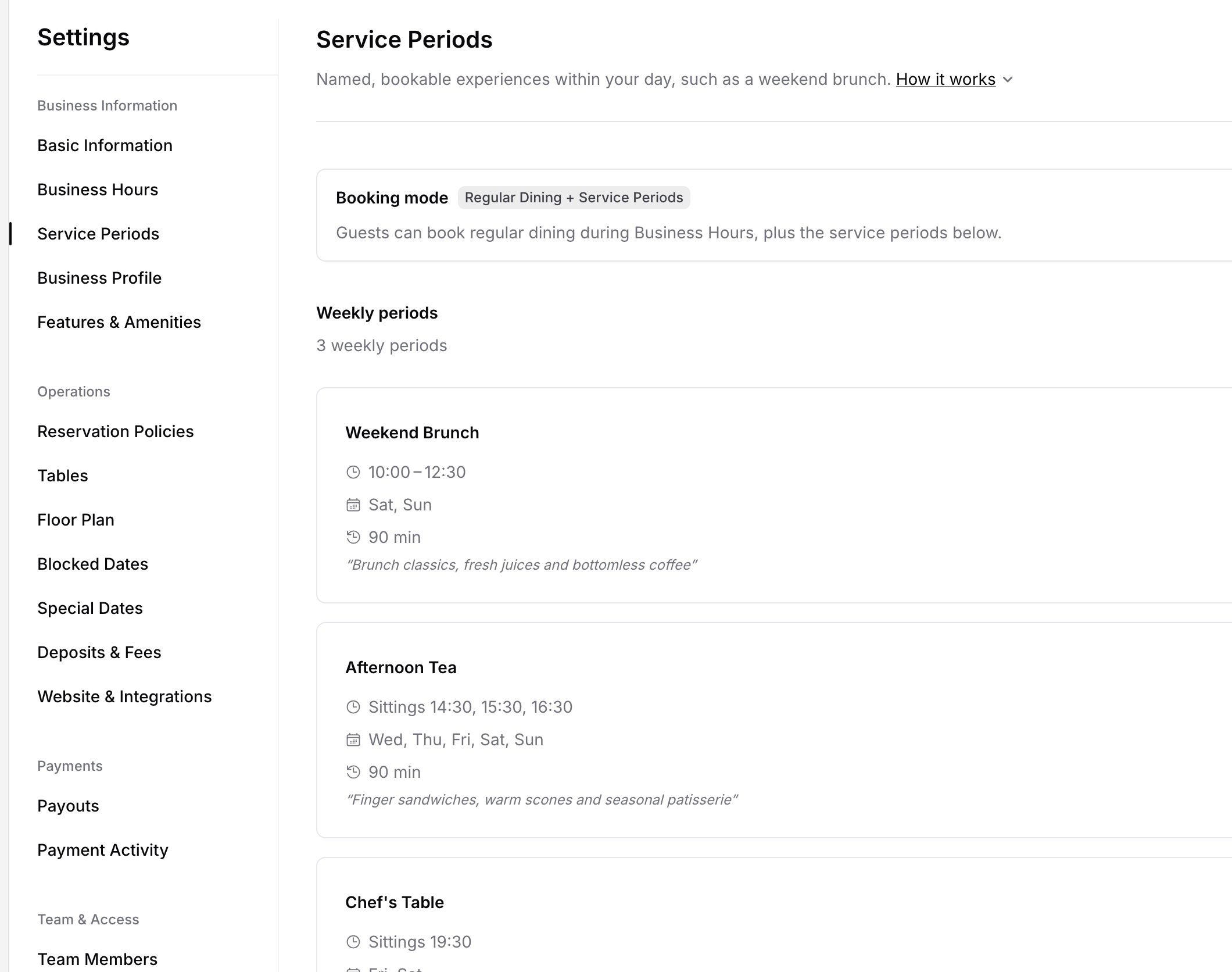
Set opening hours and a last seating for each day, add named services such as weekend brunch or afternoon tea with their own sittings and rules, and change any single date, from Christmas Eve hours to a full closure. Guests only see the times you open, in your booking widget and on Google.
- Basic is free forever
- No credit card required
Business Hours · Service Periods · Special Dates · Blocked Dates
Why venues set it up
Bookings that fit the kitchen, the menu and the calendar
Hours that match your kitchen
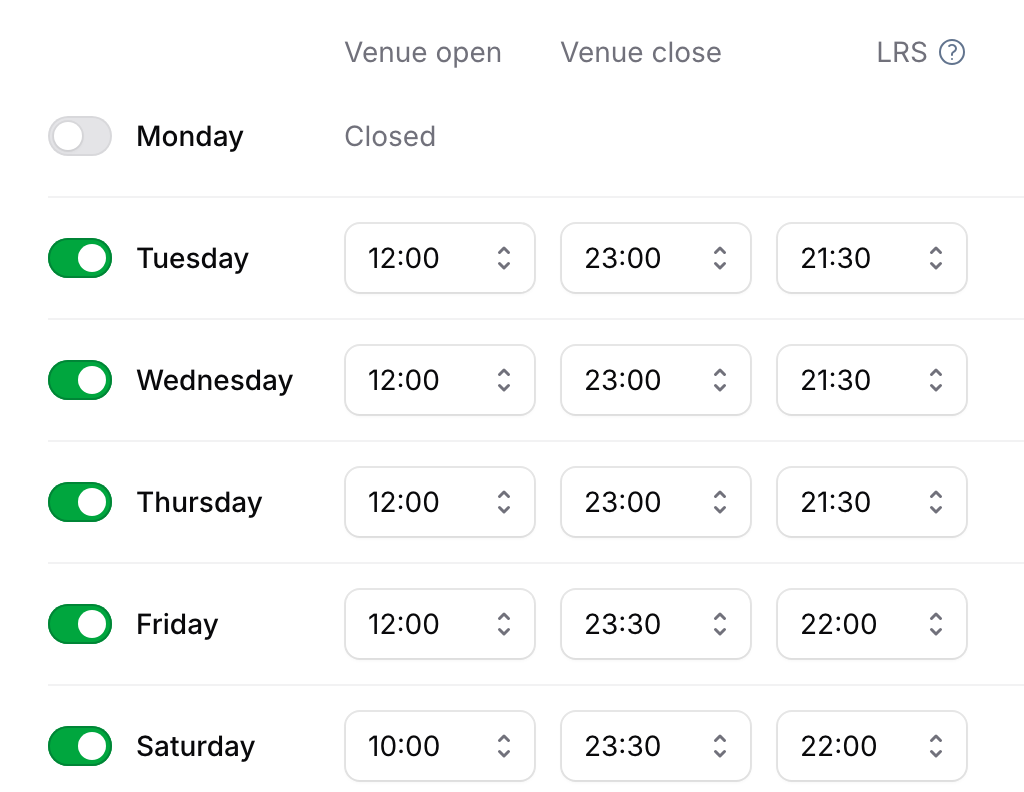
Set when you open and close each day, plus a last regular seating, so the final table starts while the kitchen can still serve it.
Every service bookable on its own
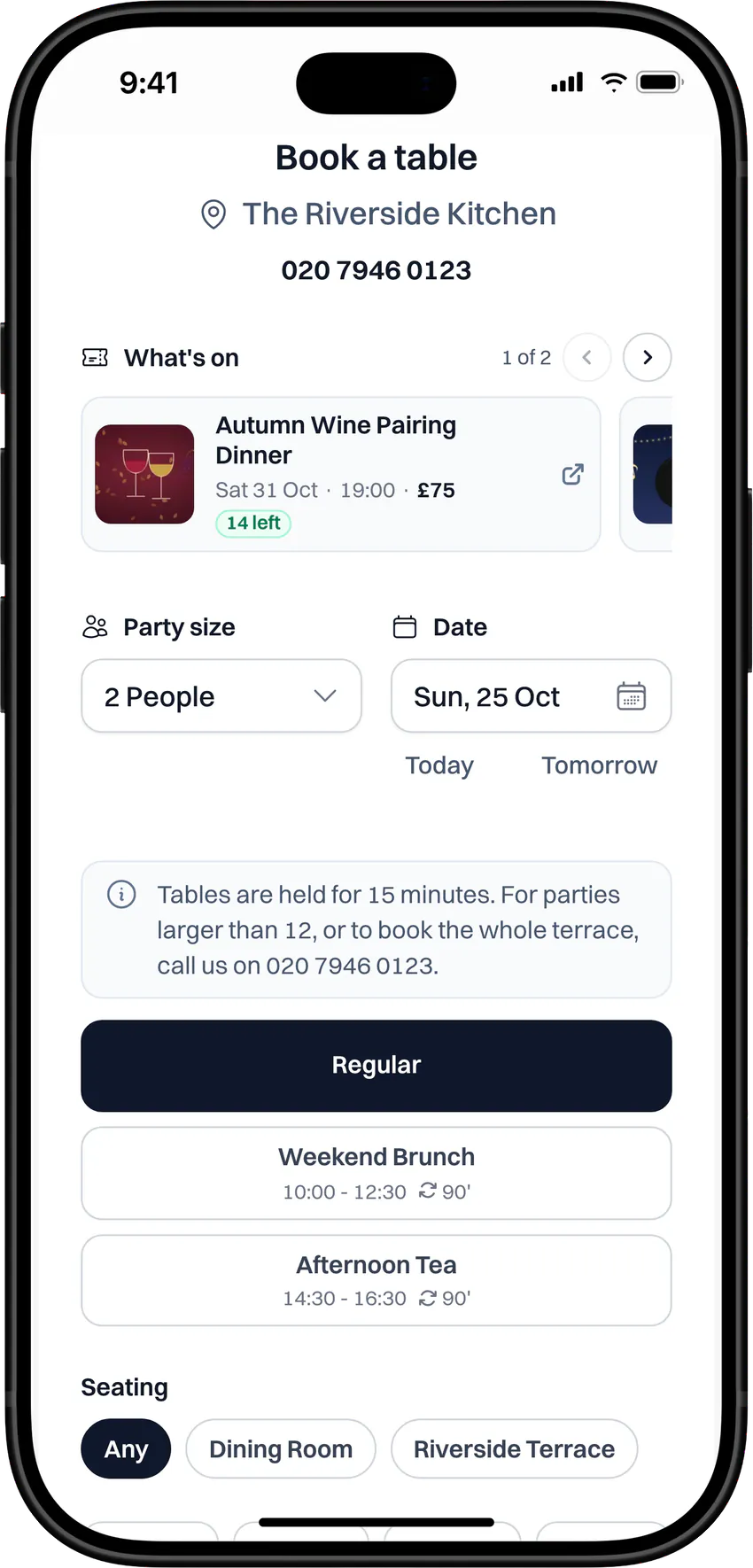
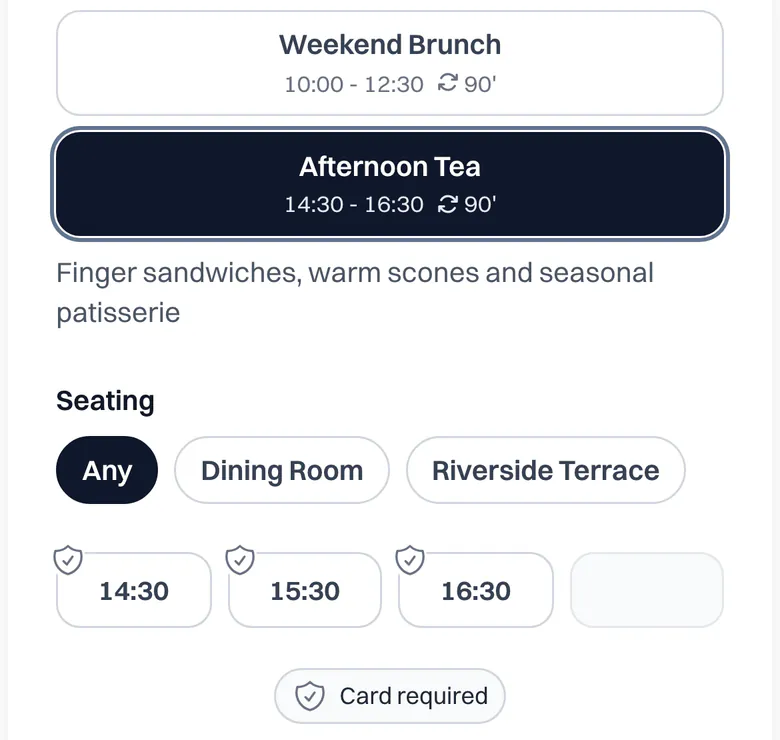
Weekend brunch, afternoon tea or a chef's table each appear to guests as their own option, with only the start times you choose.
Any date, its own setup
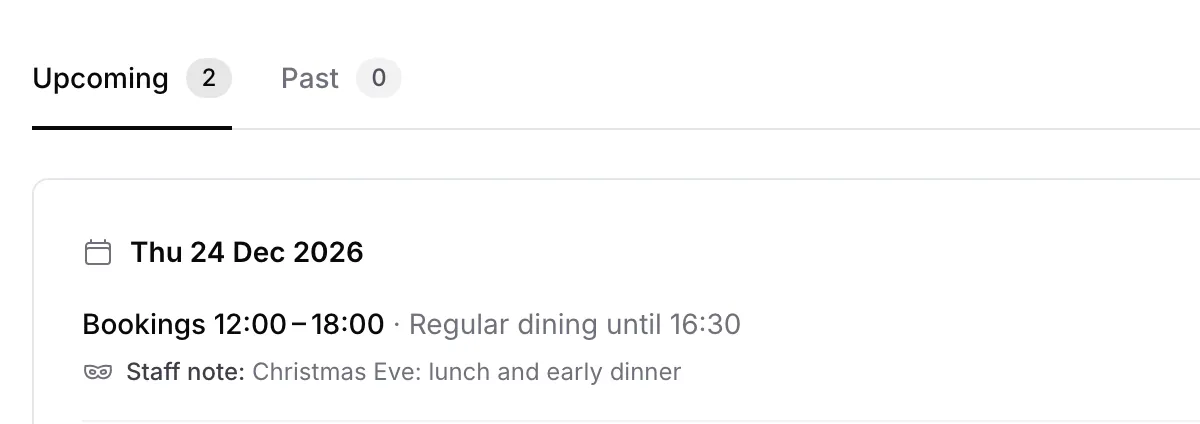
Close early on Christmas Eve, switch a service off for one date or add a one-off session, without touching your normal week.
Close a date in one place
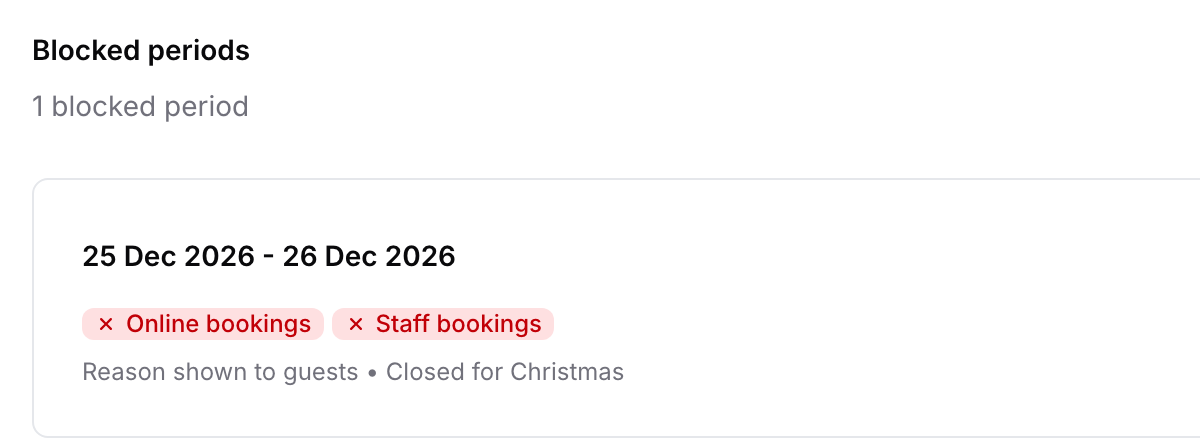
Block a date and new online bookings stop on your widget and on Google, with your own message to guests.
Service periods
Each service runs by its own rules
Fixed sittings or any time
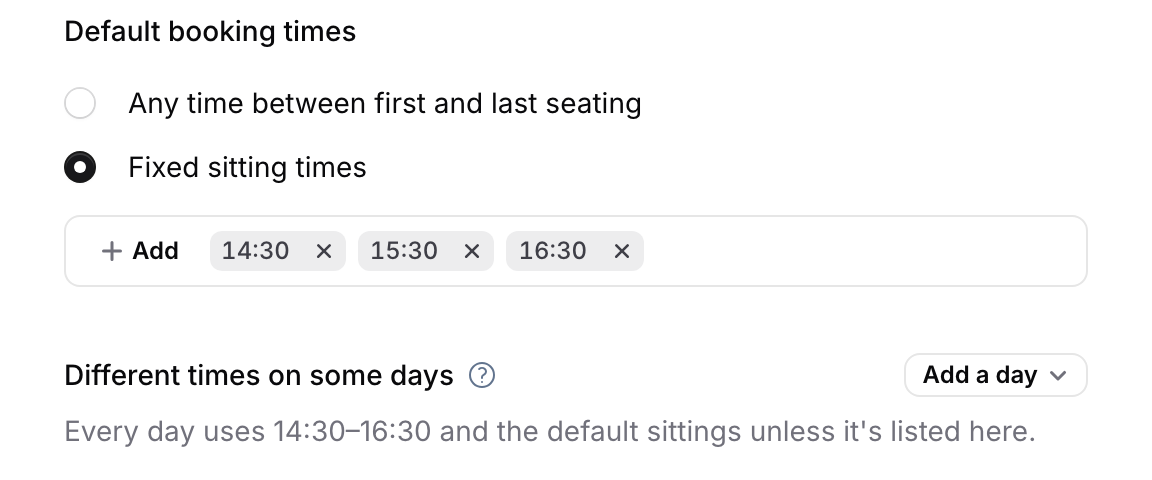
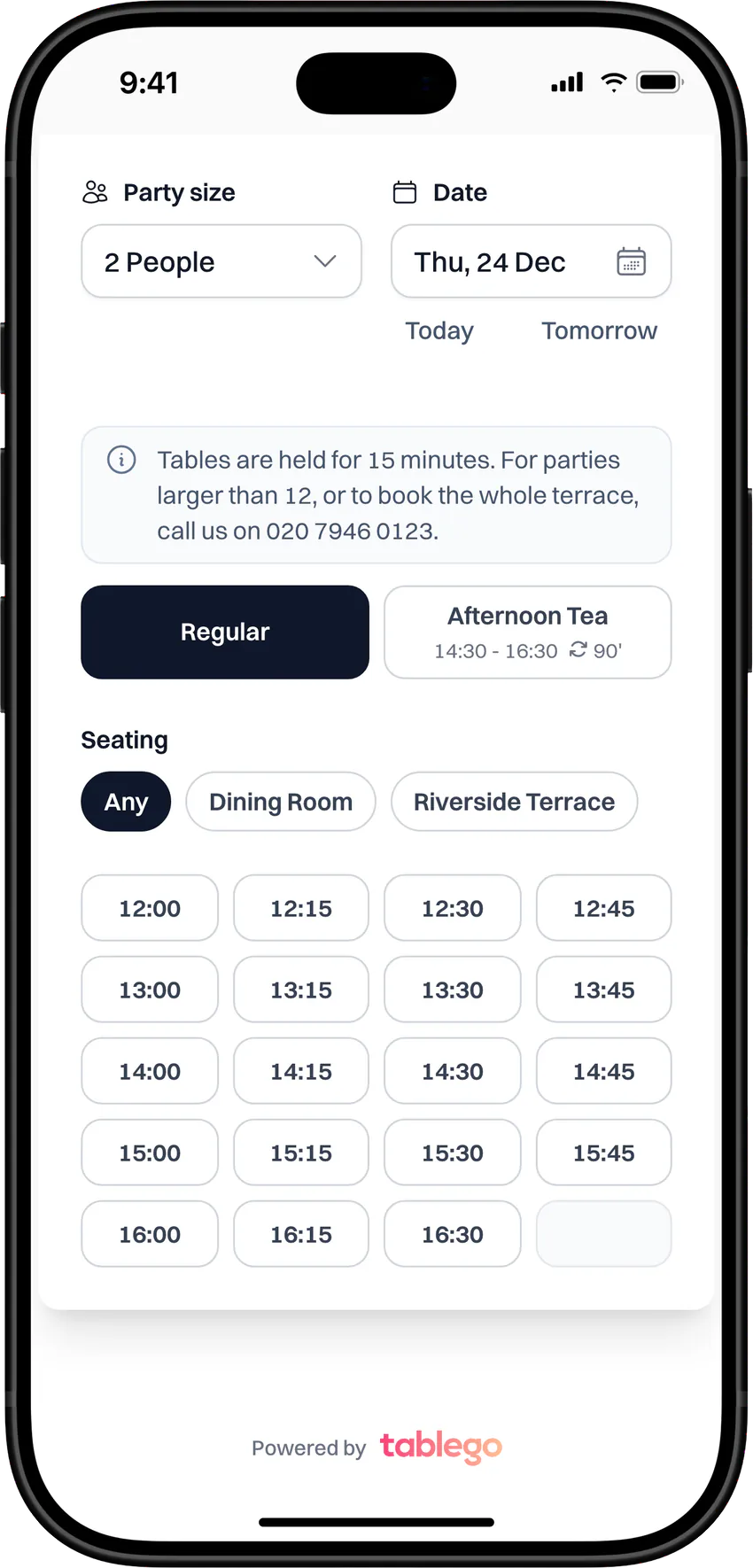
Offer every start time between first and last seating, or only the sittings you choose. Give a few days their own times without creating another service.
- Fixed sitting times, such as 14:30, 15:30 and 16:30
- First and last seating for each service
- Different times on some days
Its own length, party sizes and covers
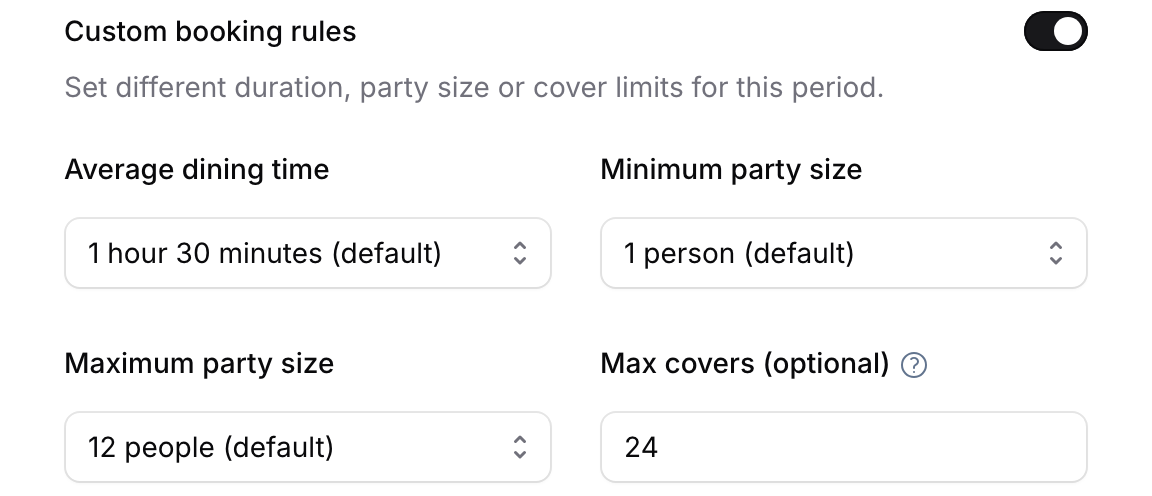
Switch on Custom booking rules to give a service its own dining time, party size range and a cap on covers for the day. Leave them off to use your restaurant defaults.
- Average dining time
- Minimum and maximum party size
- Max covers for the day
Turn on Replace regular dining to show a service instead of regular dining during its window. Deposit and card guarantee rules can target a single service, such as the chef's table.
Special dates and closures
Three levers for the days that differ
Change one date, close a run of dates or close a single start time. Every booking channel follows.
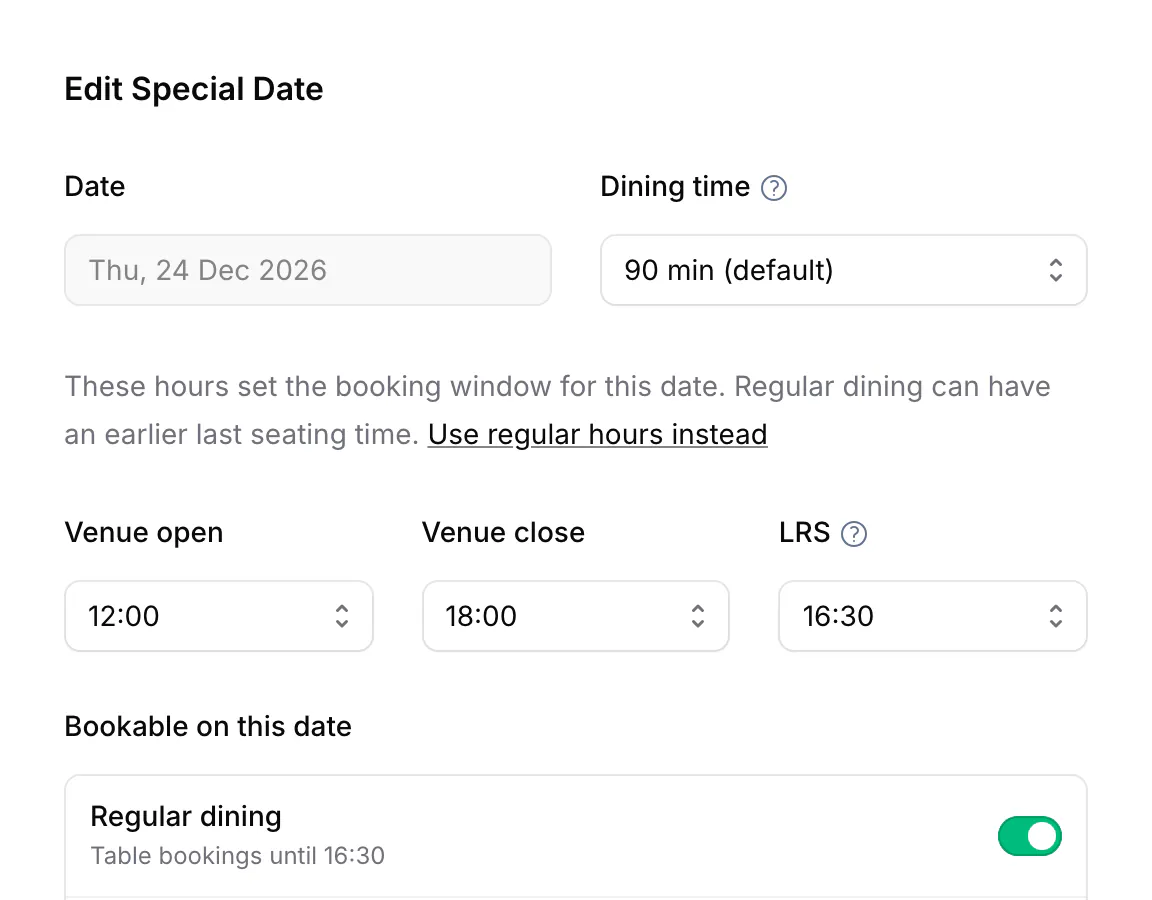
Special Dates
Give one date its own booking hours and last regular seating, choose what's bookable and add one-off sessions. Duplicate a past date to reuse it next year.
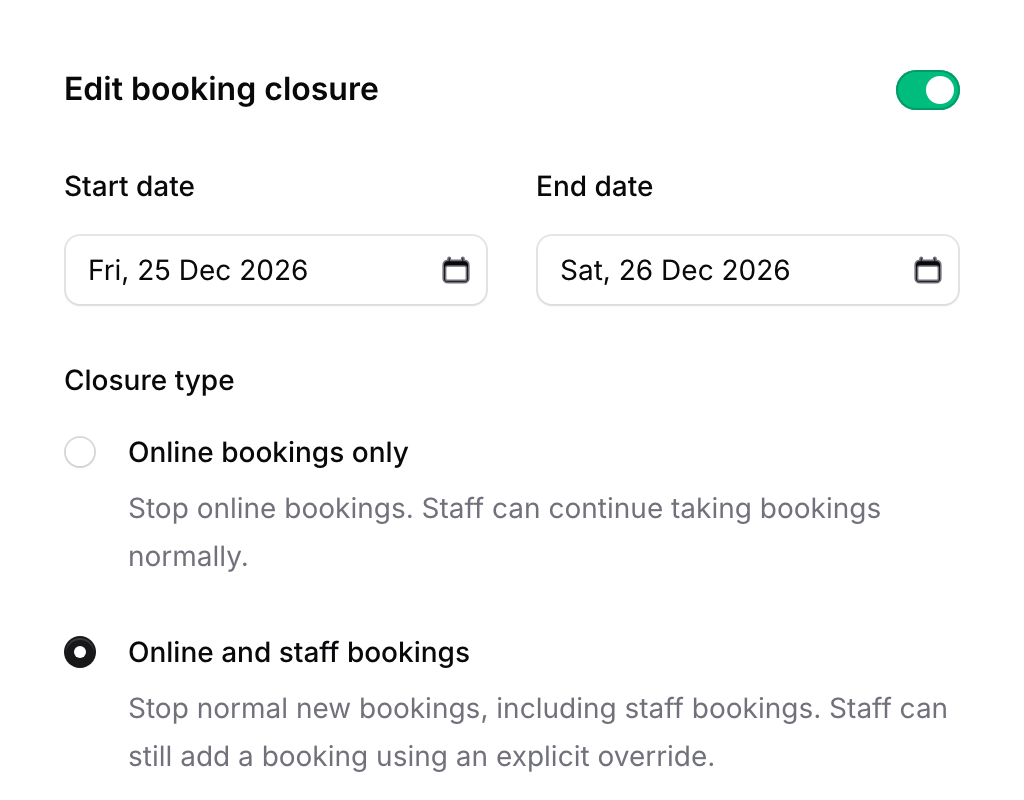
Blocked Dates
Close a date range to online bookings only, or to online and staff bookings. You're warned about existing bookings before you save.
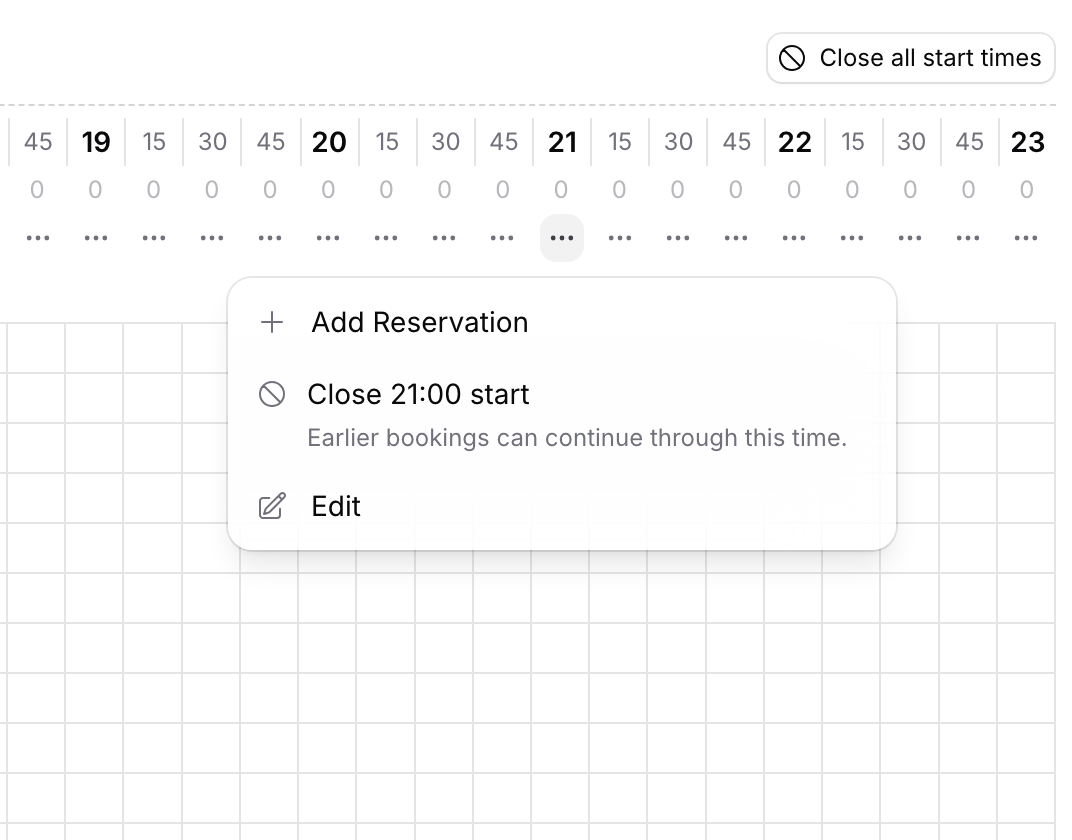
Close a start time
Close one start time from the timeline when you need fewer arrivals, or close every start time on a date. Earlier bookings carry on as normal.
One schedule
Every channel follows the same hours
Booking widget
Guests see each service as its own option, with its times, length and description. A blocked date shows your message instead of times.
Reserve with Google Pro
Google gets the same availability, special hours and closures. Each service guests can see appears as its own option, with its own length and any deposit or card guarantee.
Your team
Your team picks the service on each booking, and can still add a booking outside the rules with an override when a guest calls.
Deposits and card guarantees
Protection rules follow your services, and your deposit rules still apply on special dates.
How it works
Set your week once, then plan the exceptions
- 1
Set your week
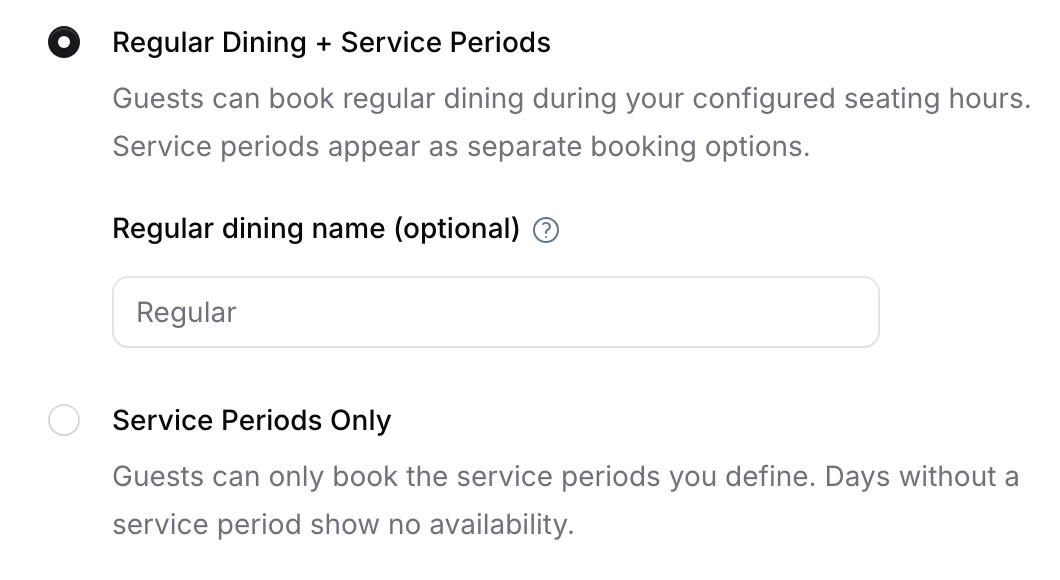
In Business Hours, choose what guests can book, then set venue open, venue close and a last regular seating for each day. Give regular dining its own name if you like, such as Lunch & Dinner.
- 2
Add your services
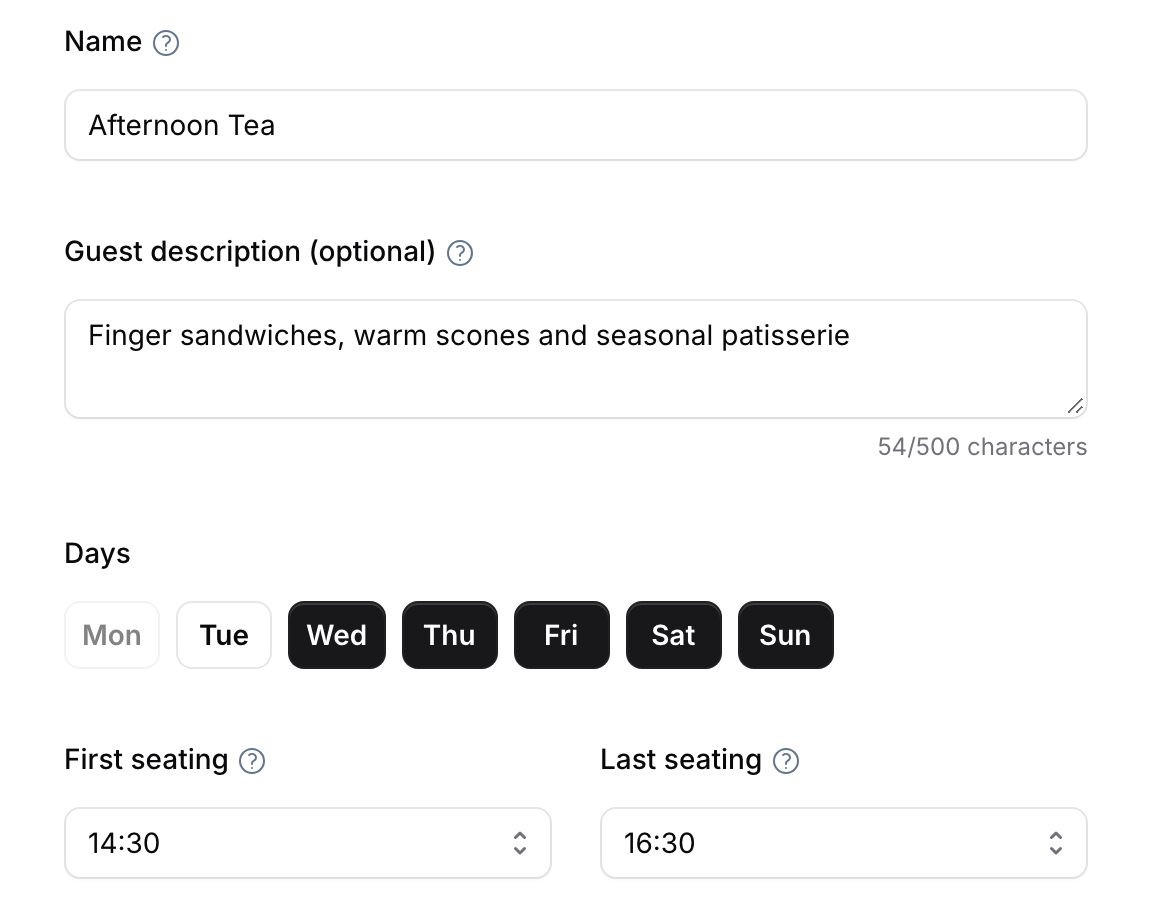
Add a service period for each experience you sell. Name it, describe it for guests, pick its days and seating times, and choose fixed sittings if you want them.
- 3
Plan the dates that differ
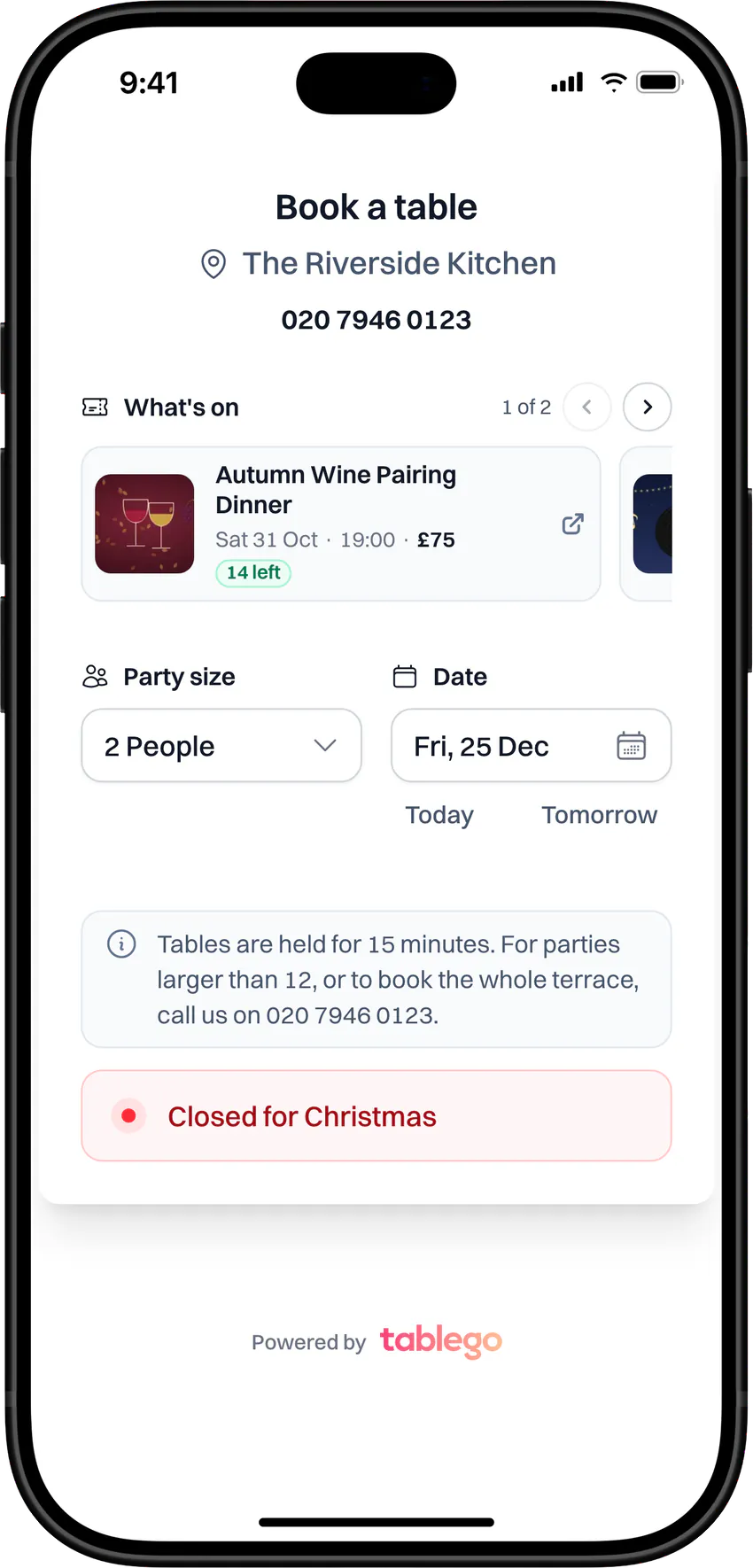
Add a special date for Christmas Eve and a blocked date for Christmas Day. Guests booking those dates see the shorter hours, or your closure message.
Plans and access
On every plan, in the right hands
- Plans
- Business Hours, Service Periods, Special Dates and Blocked Dates are on every plan.
- Who can change them
- Owners and Managers, including closing start times on the timeline. Staff can see the settings but not change them.
- Reserve with Google
- Your hours, services and closures apply automatically once your venue is live on Google. Reserve with Google is part of Pro.
- Simple (Covers) mode
- Venues in Simple (Covers) mode can also set Max active covers for a single time slot.
Questions venues ask
What's the difference between Business Hours and a service period?
Business Hours set when you open, when you close and when the last regular dining table can start. A service period is a named option inside those hours, such as Weekend Brunch, with its own times, sittings and rules.
Can guests only book set sitting times?
Yes. Choose Fixed sitting times for the service and pick the start times, for example 14:30, 15:30 and 16:30. Guests can't book in between.
Can a service replace regular dining?
Yes. Turn on Replace regular dining and guests see that service instead of regular dining during its window. To sell only your services, choose Service Periods Only in Business Hours.
How do I set different hours for Christmas Eve?
Add a special date. Change the booking hours and the last regular seating, switch services on or off for that date, and add one-off sessions. Next year, duplicate it.
What's the difference between a special date and a blocked date?
A special date changes what you take on one date. A blocked date stops new bookings, online only or online and staff, and wins if both apply. Existing bookings stay booked.
Does it work with Reserve with Google?
Yes, on Pro. Google uses the same schedule, including special hours and closures, and each service guests can see appears on Google as its own option.
Open the services you want to sell
Set your hours, add your first service period and plan the festive dates before they fill up.
- Basic is free forever
- No credit card required