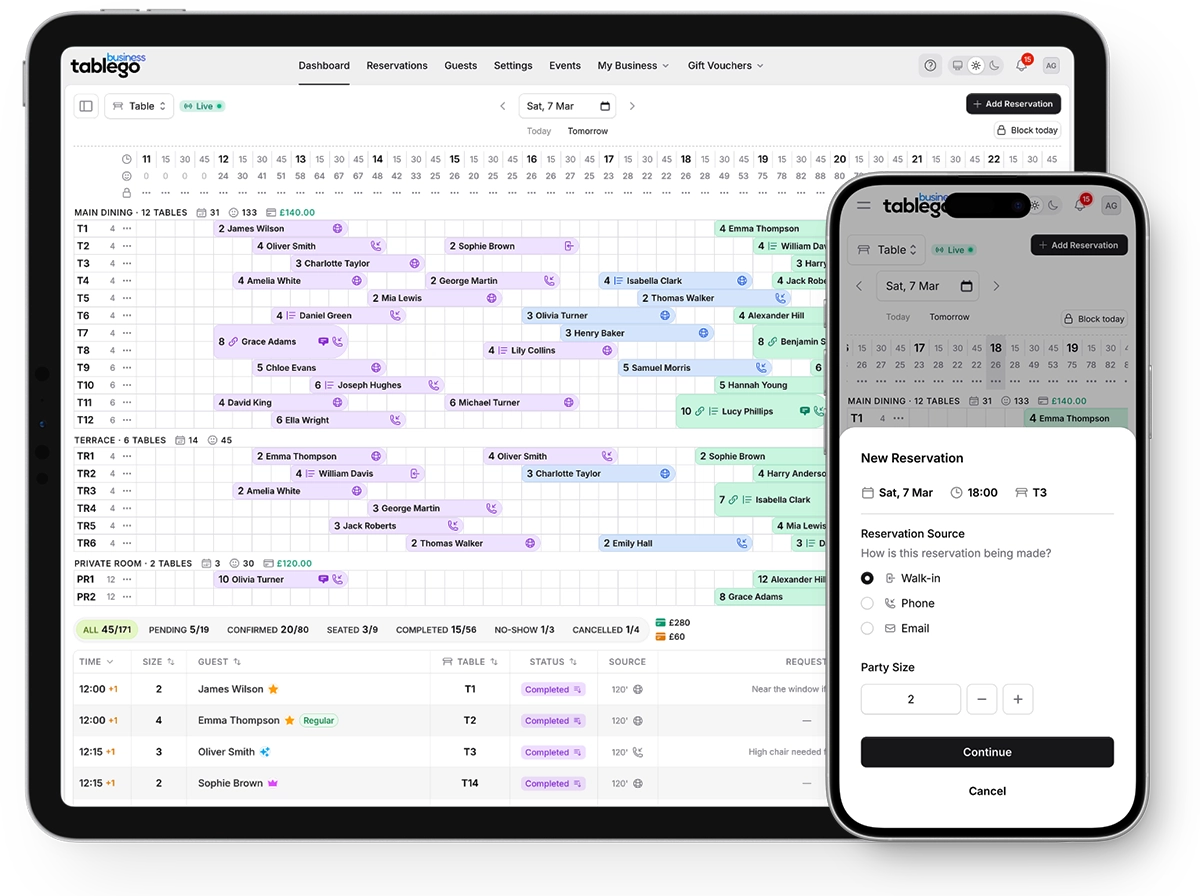
Table Management
Create areas and tables that match your restaurant layout. Assign reservations to specific tables, manage capacity, and visualise your service with the table timeline view.
Last updated: 13 Jan 2026
Key benefits
A quick overview of what you get with table management.
Manage your floor plan with drag-and-drop table assignments
How it works
Create your areas
Set up areas like 'Main Dining', 'Terrace', 'Private Room'. This helps organise your floor and lets guests request seating preferences.
Add your tables
Create tables within each area. Set the table name, minimum and maximum covers, and choose a shape (square, circle, rectangle).
Link joinable tables
Mark which tables can be joined together for larger parties. TableGo automatically generates combined options when guests book bigger groups.
Manage in the table timeline
Use the visual table timeline to see all reservations laid out across your tables. Drag to reassign, click to edit, and block tables as needed.
Frequently asked questions
Do I need to use table management?
No. Table management is optional (Pro feature). Smaller venues can use 'Simple mode' which manages capacity by covers without assigning specific tables.
Can guests request a specific table?
Guests can request an area preference (e.g., 'Terrace') in their special requests. You assign the actual table based on availability.
What if I need to rearrange tables mid-service?
You can reassign reservations to different tables at any time. The timeline updates in real-time so your team always sees the latest layout.
How do joined tables work?
When you link adjacent tables, TableGo automatically offers combined options for larger parties. For example, if Table 1 (4 covers) and Table 2 (4 covers) are linked, an 8-person party can book them together.
Ready to try table management?
Create your free account today. No credit card required.