A Special Date changes what guests can book on one date without touching your weekly setup. Close early on Christmas Eve, add a Valentine's tasting menu, or take only Lunch and Party sessions on New Year's Eve.
Where to find it
Add a special date#
- 1
Click Add Special Date
On a phone the button reads Add.
- 2
Pick the Date
Past dates can't be picked, and each date can have only one Special Date.
- 3
Set the Dining time
Used by regular dining and by sessions without their own dining time. It starts at your Average Dining Time.
- 4
Check the Booking hours
The date starts with your regular hours for that weekday. Click Change to set Venue open, Venue close and LRS (last regular seating), the latest time a regular dining booking can start. Use regular hours instead switches back.
- 5
Choose what's bookable
Under Bookable on this date, switch Regular dining and each weekly service period on or off for this date.
- 6
Add a Note (optional)
Up to 140 characters, for your team only, such as Christmas Eve.
- 7
Click Add date
If the date is no different from a normal day, TableGo asks you to change something or add a session first.
You should see: Special Date created, and a card for the date under Upcoming.
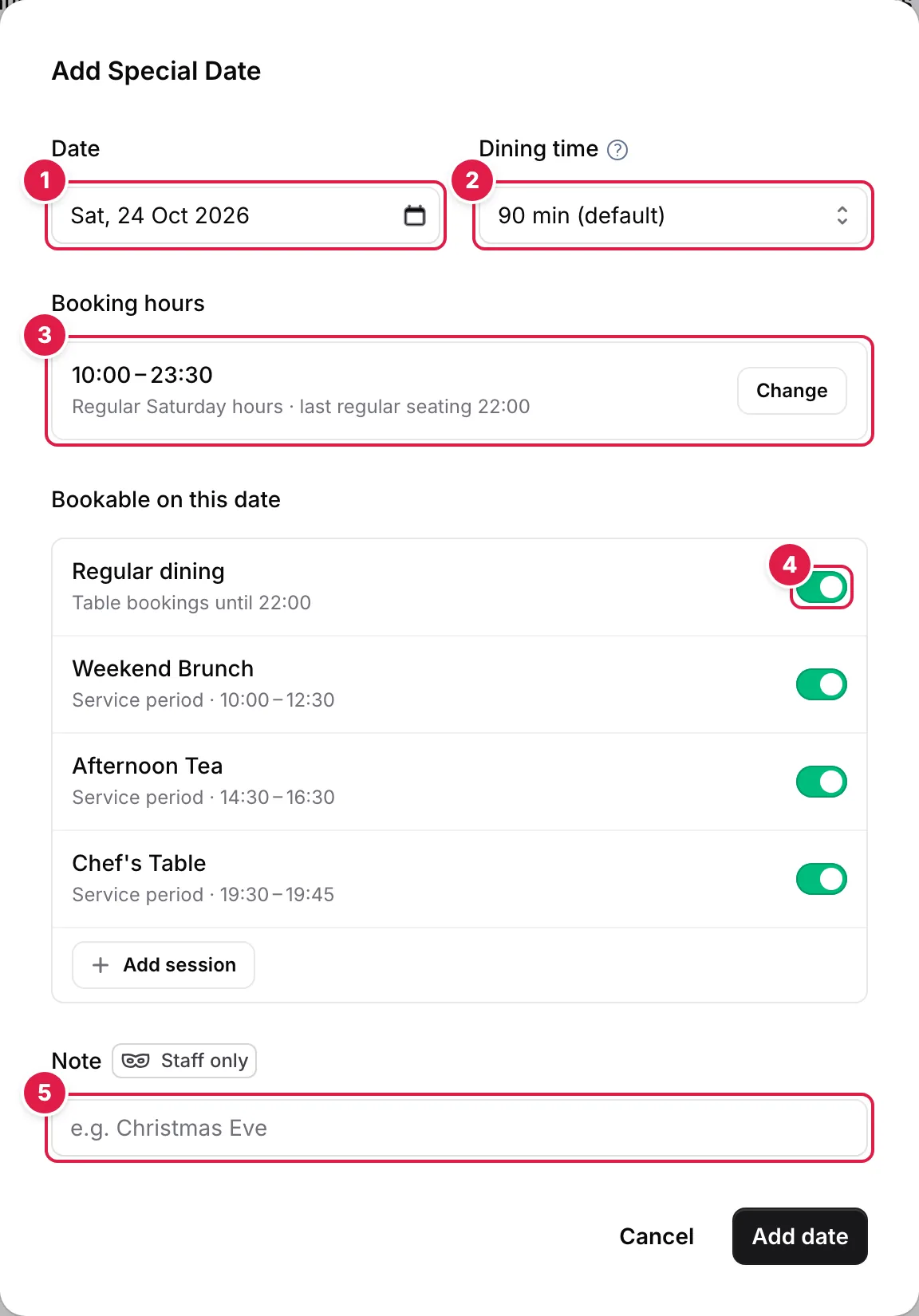
- Date: past dates can't be picked
- Dining time: starts at your Average Dining Time
- Booking hours: click Change to set Venue open, Venue close and LRS
- Bookable on this date: switch each service on or off
- Note: for your team only
Add a one-off session#
A session is a bookable experience for this date only, such as a New Year's Eve party. On the date's card, click + Add session. In the date's dialog, + Add session saves the date first, then opens the session.
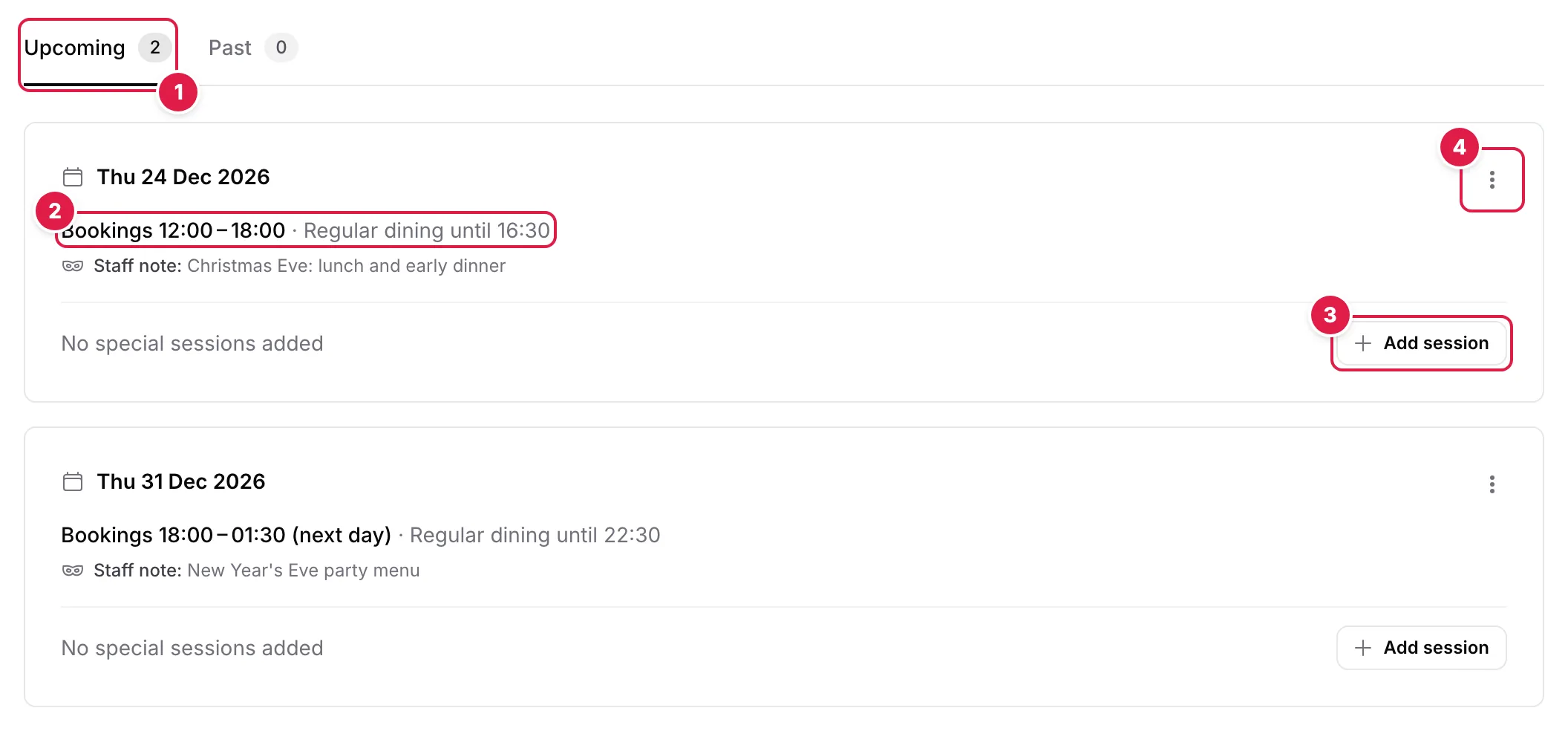
- Upcoming dates; once a date has passed it moves to Past
- The date's booking hours and last regular seating
- + Add session: a one-off session for this date
- ⋮ menu: Edit, Duplicate or Delete
A session is set up like a service period: a name and guest description, First seating and Last seating within the date's hours, any time or fixed sitting times, and optionally its own dining time, party sizes and Max covers. Click Add session to save it.
Tip
What takes priority#
- Blocked Dates win. A Special Date doesn't reopen a blocked date.
- Your deposit and card guarantee rules still apply.
- Two sessions or service periods can't offer the same start time on the same date.
- If you switch off a service period that already has bookings on the date, TableGo lists them first. The bookings are kept, so contact those guests if the service won't run.
Reuse a date next year#
Once a date has passed, it moves to the Past tab as a record and can't be changed. Open its ⋮ menu and choose Duplicate to copy its hours, dining time and sessions, including their fixed sitting times, to a new date. TableGo suggests the same date next year. Check the details, then click Add date. You can duplicate upcoming dates too.
Edit or delete a special date#
Use the ⋮ menu on an upcoming date to Edit, Duplicate or Delete it. A date can't be moved: duplicate it to the new date instead. A date with sessions can't be deleted until its sessions are deleted, and a session with bookings should be switched off rather than deleted. Deleting a Special Date puts your weekly setup back for that date and doesn't change existing reservations.