A service period is a named experience guests can book, such as Bottomless Brunch, Sunday Lunch or a set dinner. Each one has its own days and booking times and, if you like, its own dining time, party sizes and cover limit. Guests see it as a separate option in your booking widget.
Where to find it
Choose a booking mode#
Your booking mode decides whether guests can also book regular dining. Set it in Settings → Business Hours, under What Guests Can Book:
- Regular Dining + Service Periods — guests book regular dining during your Business Hours, and your service periods appear as extra options. You can give regular dining its own name, such as Dinner.
- Service Periods Only — guests can only book your service periods. Days without one show no availability.
Important
Add a service period#
- 1
Click Add Service Period
On a phone the button reads Add.
- 2
Name it
Use the name guests should see, up to 80 characters. Add a Guest description (optional) of up to 500 characters to say what's included.
- 3
Pick the Days
Days you're closed in Business Hours can't be picked.
- 4
Set First seating and Last seating
The earliest and latest times a booking can start. If Last seating is earlier than First seating, the period runs past midnight and shows next day.
- 5
Choose the booking times
Any time between first and last seating, or Fixed sitting times: click + Add and pick each sitting, such as 12:00 and 14:30. With two or more days picked, this is headed Default booking times.
- 6
Set Custom booking rules (optional)
Turn it on to give this period its own Average dining time, Minimum party size, Maximum party size and Max covers (optional), the total covers for this experience per day.
- 7
Choose how guests see it
Leave Show to guests on to offer it online. Turn on Replace regular dining to hide regular dining during this period's times.
- 8
Click Create
TableGo checks the period against your Business Hours and your other periods first.
You should see: Service period created, and a card with its times, days and rules.
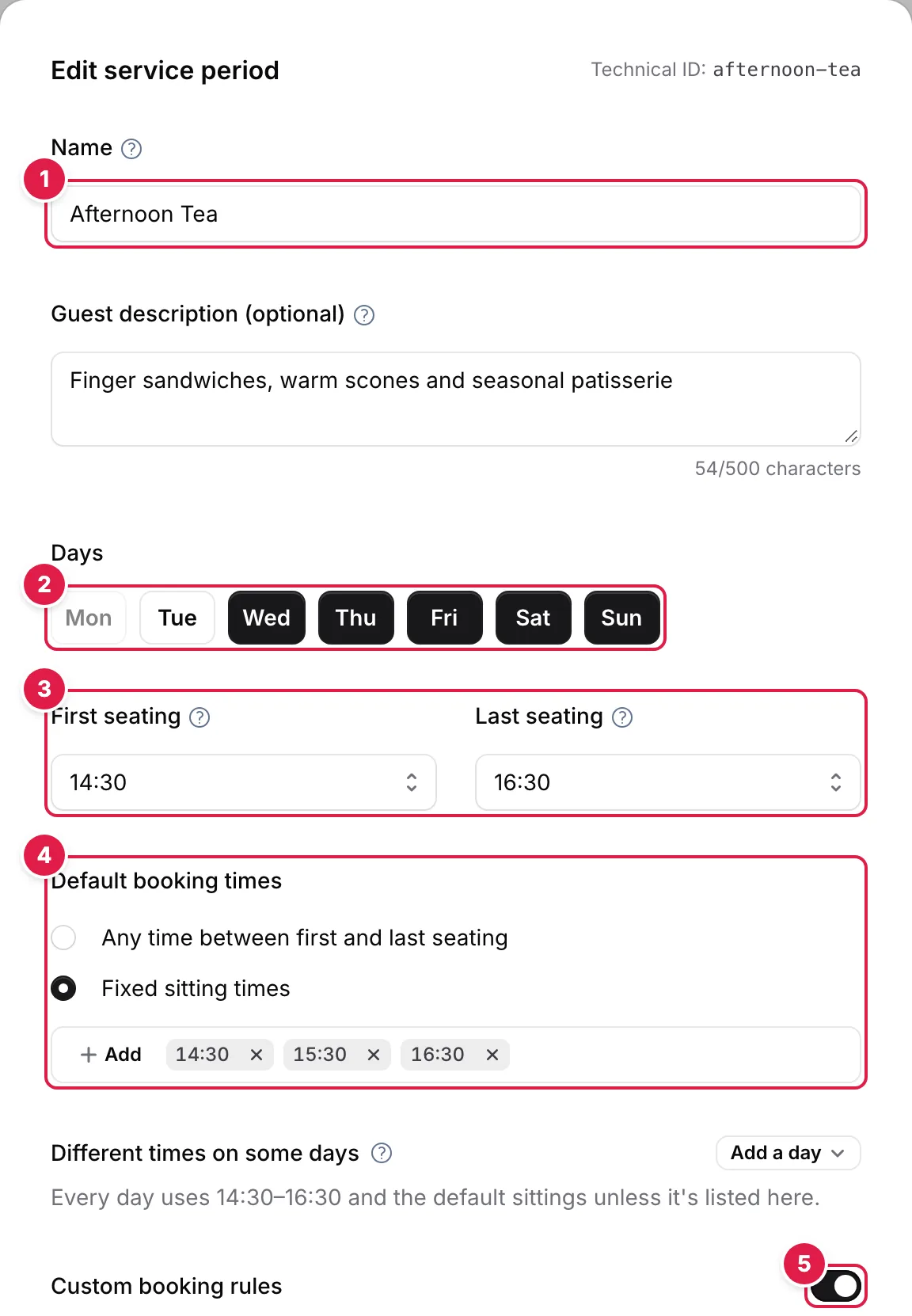
- Name: what guests see, with an optional Guest description
- Days: days you're closed in Business Hours can't be picked
- First seating and Last seating: the earliest and latest start
- Booking times: any time, or Fixed sitting times via + Add
- Custom booking rules: own dining time, party sizes and Max covers
Different times on some days#
If a period runs at different times on some days, such as a later brunch on Sundays, select two or more days, then use Add a day under Different times on some days. Each day you add gets its own First seating, Last seating and booking times. If the rules, capacity or the experience itself differ, create a separate service period instead.
Rules to know#
- Two active periods can't offer the same start time on the same day. A period ending at 15:00 clashes with one starting at 15:00, so leave a gap, such as 14:30 and 15:00.
- A period has to fit inside your Business Hours on each of its days. If it doesn't, the dialog says which day to fix.
- Gaps between periods simply mean no bookings at that time.
- With Show to guests off, the period is hidden from your widget, but your team can still book it.
- Replace regular dining only appears in Regular Dining + Service Periods mode.
Pause, edit or delete#
Use the switch on a card to activate or deactivate a period. An inactive period shows Inactive and can't be booked. Use the ⋮ menu to Edit (the same form; click Update to save) or Delete it. Deleting keeps existing reservations, but guests can no longer book that experience.
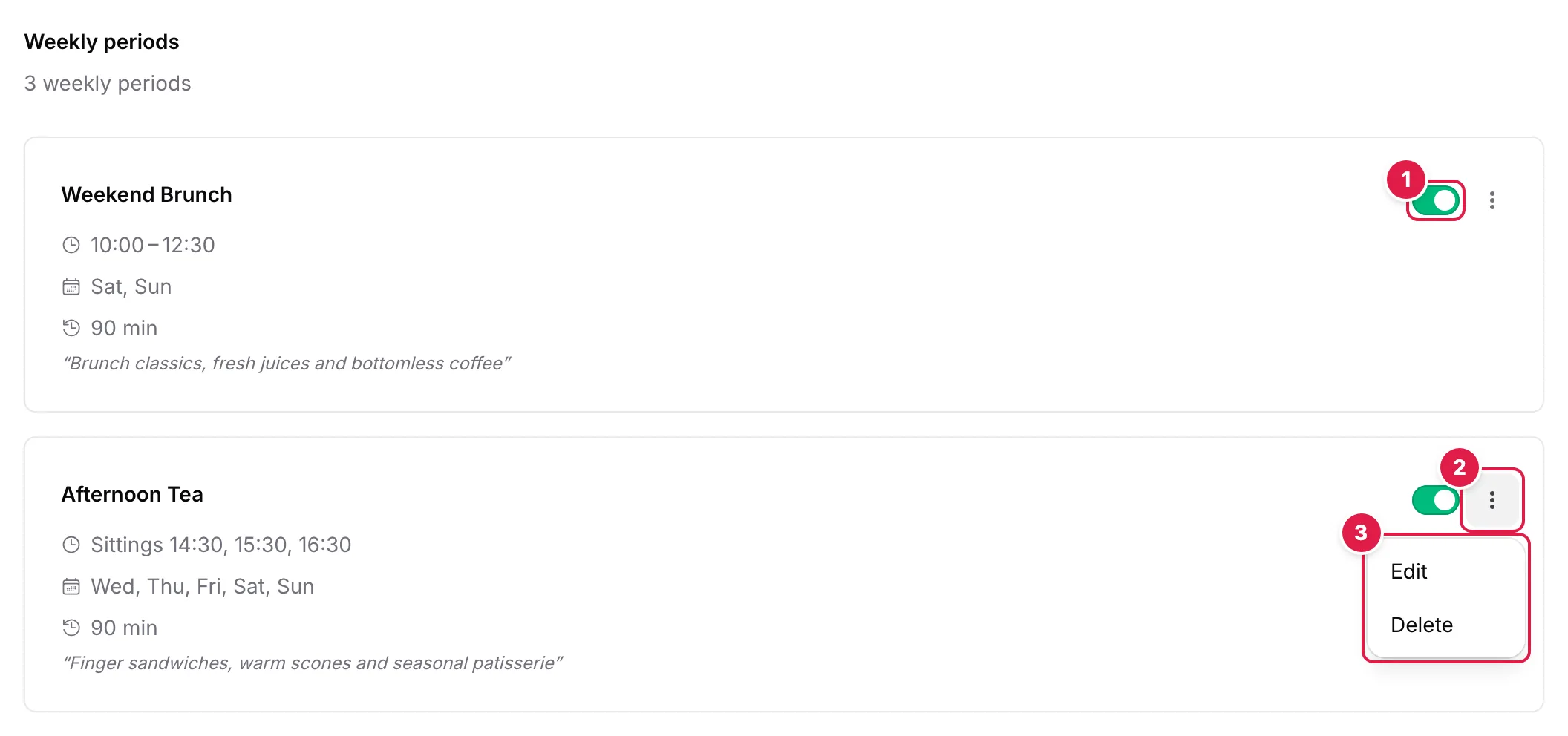
- The switch activates or deactivates the period
- The ⋮ menu
- Edit or Delete the period
Tip
Changes for one date#
To switch a weekly period off on one date, or to add a session for a single date such as a Christmas set menu, use Special Dates. Dates a period is switched off appear on its card under Excluded on, with Re-enable to offer it again.