During a busy service you may want to stop bookings starting at a certain time, close the rest of the day to new bookings, or cap how many guests you hold at once. You can do all of this from the Dashboard, for the date you're viewing.
Note
Close one start time#
Where to find it
- 1
Open the Timeline view
Choose Timeline from the view menu at the top left of the Dashboard, and pick the date.
- 2
Click … under the time
In the Table view, use the … in the time header instead.
- 3
Click Close HH:MM start
For example Close 19:30 start.
You should see: The time turns blue and shows a ⊘ icon. Bookings that started earlier carry on through it.
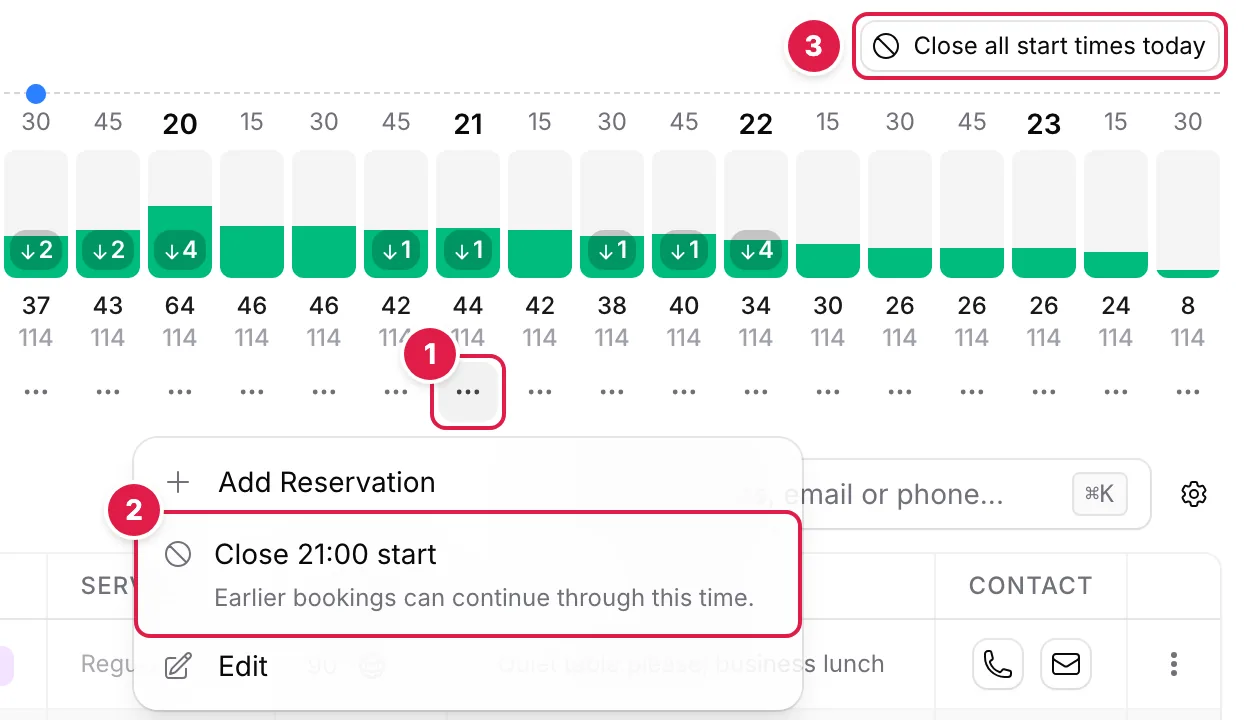
- Click … under the time
- Close 21:00 start: earlier bookings carry on through it
- Close all start times today: no new bookings for the date
To reopen it, click the ⊘ and choose Reopen HH:MM start.
Close all start times#
To stop every new booking for the date, click Close all start times at the top right of the Timeline, Table or Floor Plan view, then confirm. It reads Close all start times today when you're viewing today, and Close all on a phone. Existing bookings aren't affected. Reopen all start times opens them again.
Tip
Limit covers for a time slot#
In Simple (Covers) mode you can cap how many guests you hold during a time slot, counting bookings that started earlier.
- 1
Click … under the time, then Edit
Edit Time Slot opens.
- 2
Set Max active covers
Leave it blank to use your venue's capacity. 0 means nobody can be seated in that slot.
- 3
Add a Reason (Optional)
Marked Staff only: for your team, such as Staff shortage.
- 4
Click Save Changes
The limit applies to this date only.
You should see: Time slot updated successfully.
Edit Time Slot also has the Close start time switch, and Show change history lists who closed, reopened or changed the slot, and when.
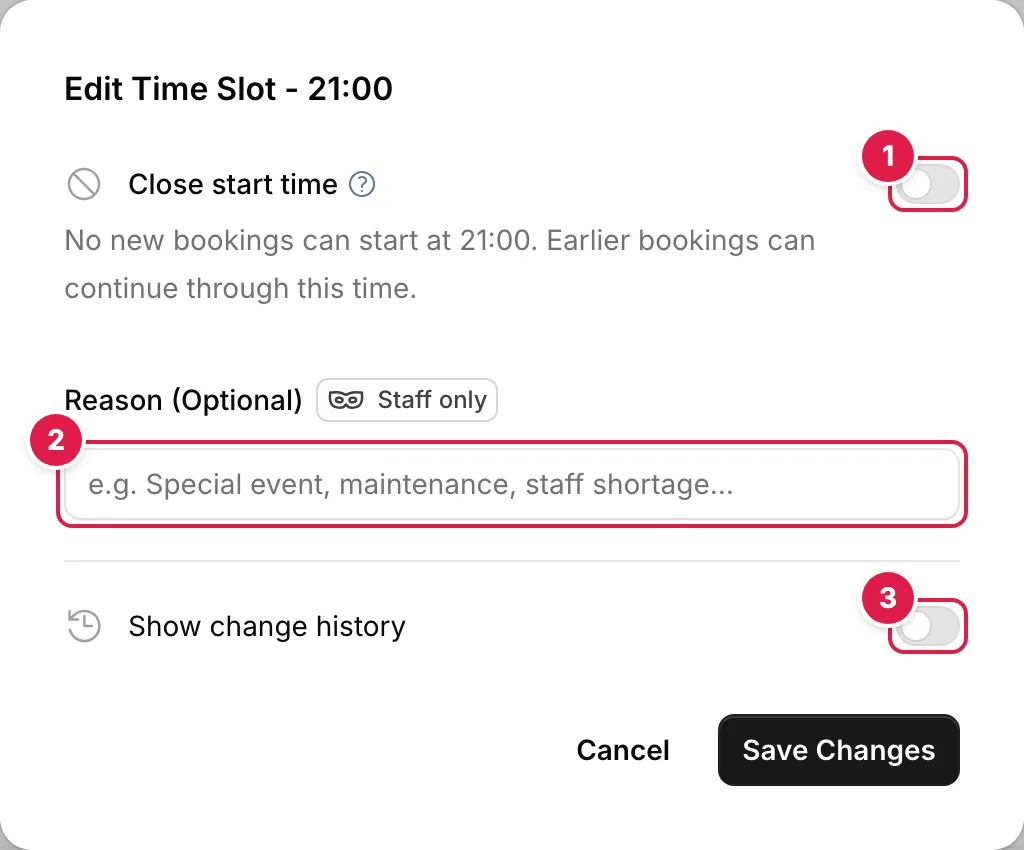
- Close start time
- Reason (Optional): for your team only
- Show change history: who closed, reopened or changed it
Good to know#
- A closed start time stops online and staff bookings starting at that time. Staff can still force a booking with the override in Add Reservation.
- Closures and cover limits only apply to the date you're viewing.
- In Tables mode, to take a table out of use for a while, block the table instead.