The floor plan shows your tables as they're laid out in the room, and who's at each one at any time. It's for venues in Tables (Table assignments) mode, and it's in beta.
Arrange your tables#
Where to find it
- 1
Choose an area
With two or more areas, pick one from the dropdown. Tables without an area are under Unassigned.
- 2
Drag the tables into place
They snap to the dot grid.
- 3
Rotate tables
Select a table, then use the arrows either side of its angle (Rotate left 45° and Rotate right 45°). Round tables don't rotate.
- 4
Click Save layout
Save each area before you switch to the next one.
You should see: Layout saved, under the page title.
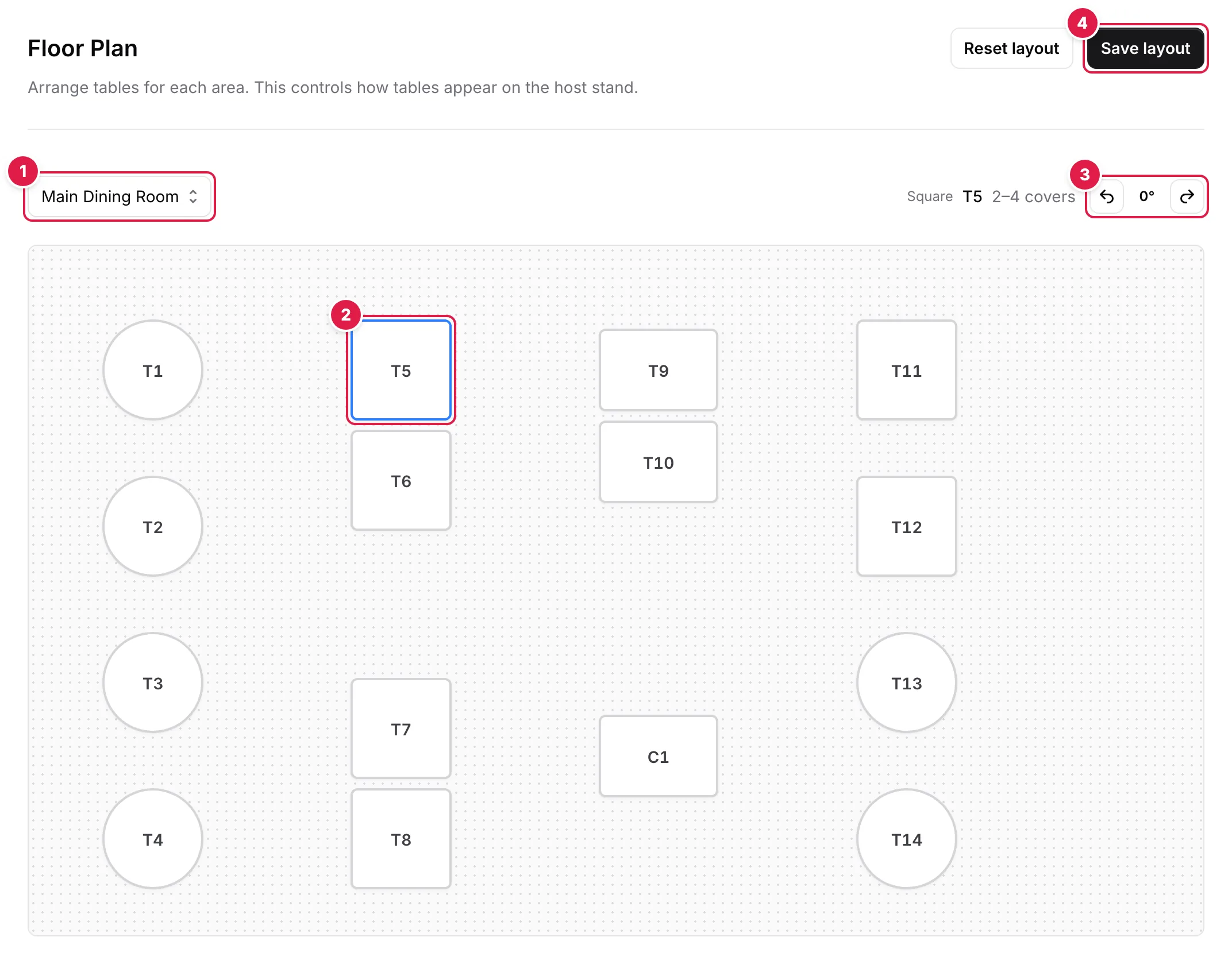
- Choose an area
- Click a table to select it; drag it to move it
- Rotate left 45° or Rotate right 45°
- Save layout before you switch area
Table shapes (square, round or rectangle) are set in Settings → Tables. Reset layout lines up the area's tables in rows again, and isn't kept until you click Save layout. Only Owners and Managers can save the layout.
Run service from the floor plan#
Where to find it
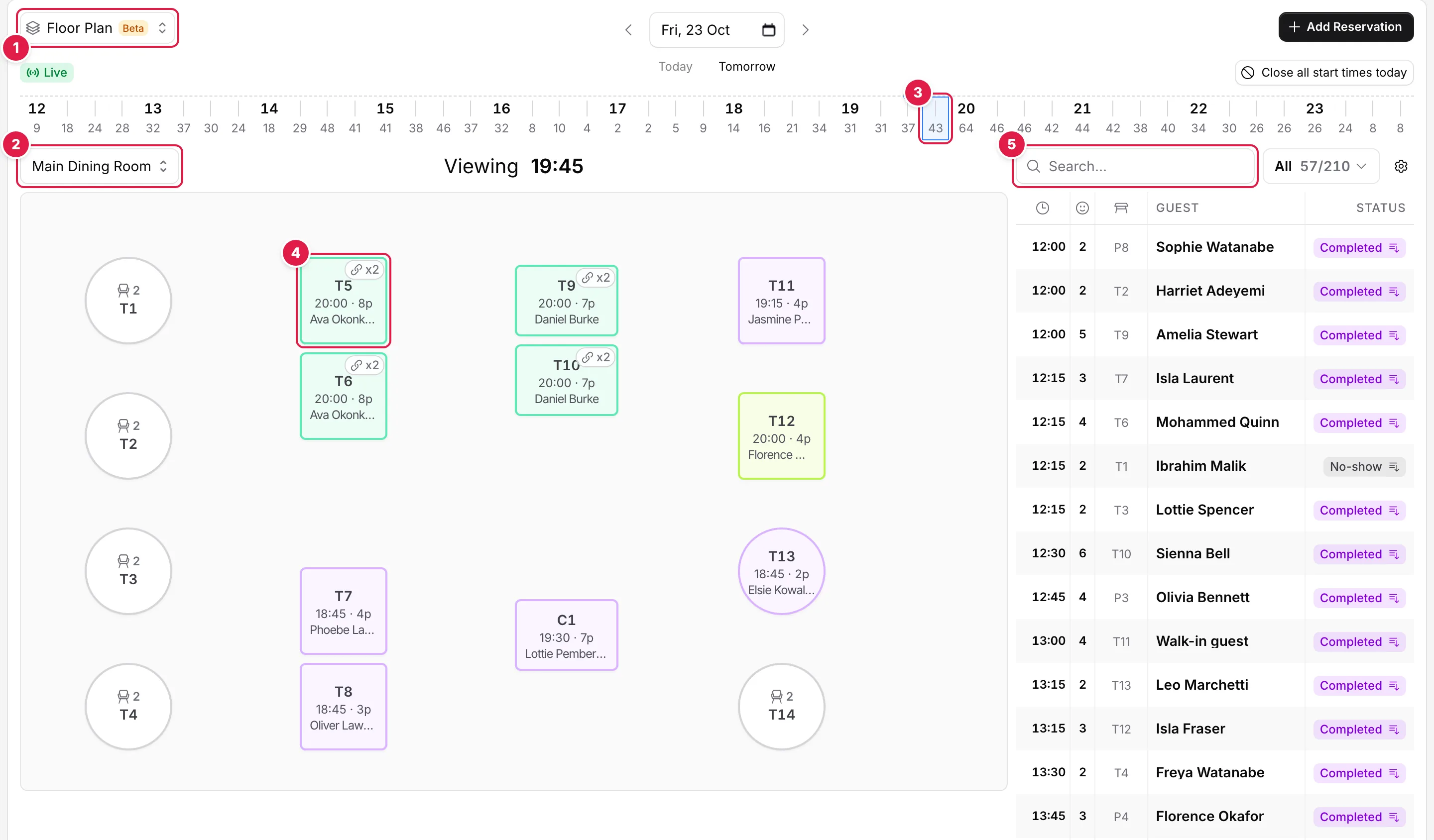
- View menu: Floor Plan
- Choose the area
- Click a time to look ahead
- Click a table for its reservation, to add one or to block it
- The day's reservations: search or filter by status
The plan shows the area you choose at the time on the time strip: Live for today, or click a time to look ahead (the plan then shows Viewing and that time). Click a table to see its Reservation details, to Add reservation when it's free, or to block it for the whole service or a time range.
The reservations panel#
Beside the plan, or below it on smaller screens, is the day's reservation list. Search it, or filter by status: Unassigned shows bookings that still need a table. The gear menu can hide cancelled bookings and no-shows.
Assign tables#
- Drag a reservation onto a table to seat it there.
- To use several tables, click the table chip in the reservation's row, click each table to add or remove it, then click Save. The bar shows when there are Enough seats.
- The tables must be in the same area. Blocked tables and tables taken by another booking can't be picked.
- Completed, cancelled and no-show reservations can't be moved.
Owners, Managers and Staff can all use the floor plan during service.
Tip