Selling a gift voucher at the counter or over the phone? Create the order in TableGo and the buyer gets the same PDF voucher by email as someone who bought online. You can also refund any voucher that hasn't been used.
Sell a voucher in person#
Where to find it
- 1
Click Create Order
On Orders, or from a voucher's ⋮ menu on the Vouchers page, which picks that voucher for you. On a phone the button reads Create.
- 2
Choose the Voucher Product
Only active vouchers are listed. For a flexible voucher, enter the Gift Amount in whole pounds.
- 3
Enter the buyer
Purchaser Name and Purchaser Email are required.
- 4
Add a recipient (optional)
Tick This Is a Gift for Someone Else to add the Recipient Name, Recipient Email and a Personal Message.
- 5
Click Create Order
The order is saved as On-site.
You should see: Order created successfully. The buyer, and the recipient if there is one, are emailed the PDF voucher.
Important
Owners, Managers and Staff can create orders.
Find an order#
Orders lists every voucher sold, online and on-site. Search, or filter by status (such as Unredeemed or Refunded) and type (Online or On-site). Choose View on an order to see its details; Download PDF there gets the voucher again.
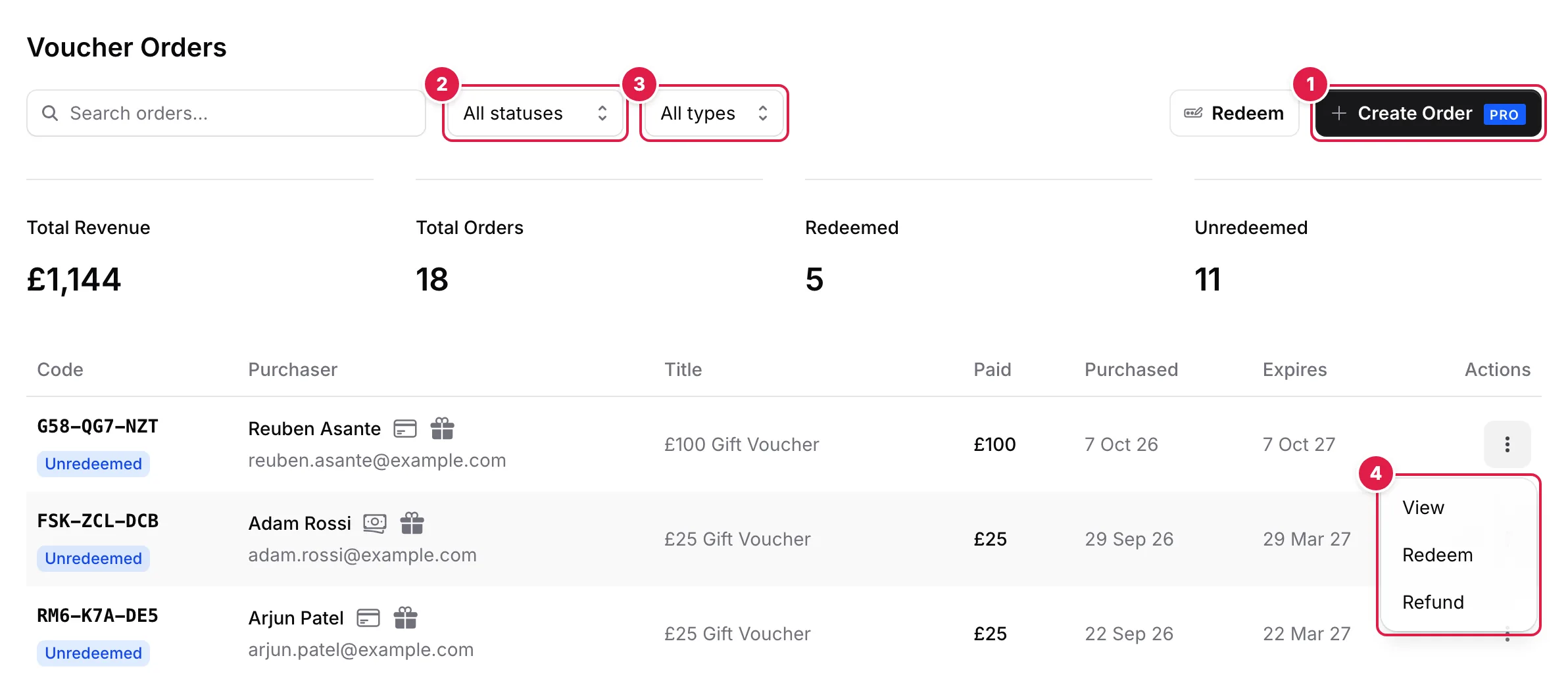
- Create Order: record a voucher sold in person
- Filter by status, such as Unredeemed or Refunded
- Filter by type: Online or On-site
- The order's ⋮ menu: View, Redeem or Refund
Refund a voucher#
- 1
Find the order
Open the row's ⋮ menu and choose Refund, or click Refund in the order's details.
- 2
Add a Refund Note (optional)
For example, requested by customer.
- 3
Check the Refund Summary
The purchaser, the refund amount and, for online orders, the card it goes back to.
- 4
Click Confirm Refund
The voucher can no longer be redeemed.
You should see: Voucher refunded successfully.
- Only unredeemed vouchers can be refunded, including ones past their expiry date.
- Refunds are always for the full amount.
- Online orders go back to the buyer's card through Stripe, and TableGo's fee is refunded too.
- On-site orders are only marked Refunded, so give the money back at your till.
- Only Owners and Managers can refund.
- The buyer isn't emailed about the refund, so let them know.